
A cookie measures ad performance. The page works the same either way.
Full Guide
How KatisoBiz works, all in one place. Getting set up takes about ten minutes, and after that a quote takes under a minute.
Already going? Pick a guide
One short guide per feature, step by step with a picture of every screen.
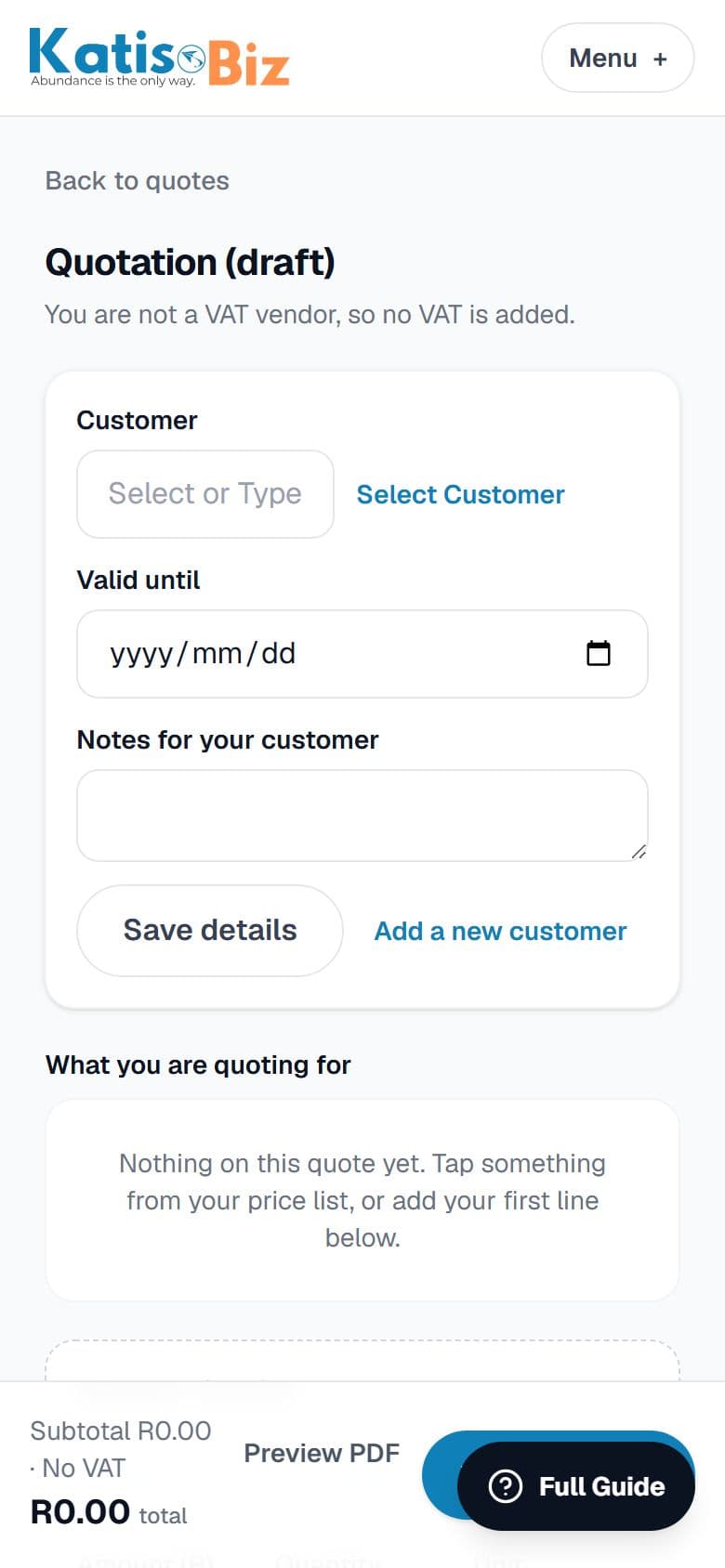
Send a quote
3 steps · Under a minute once your prices are in
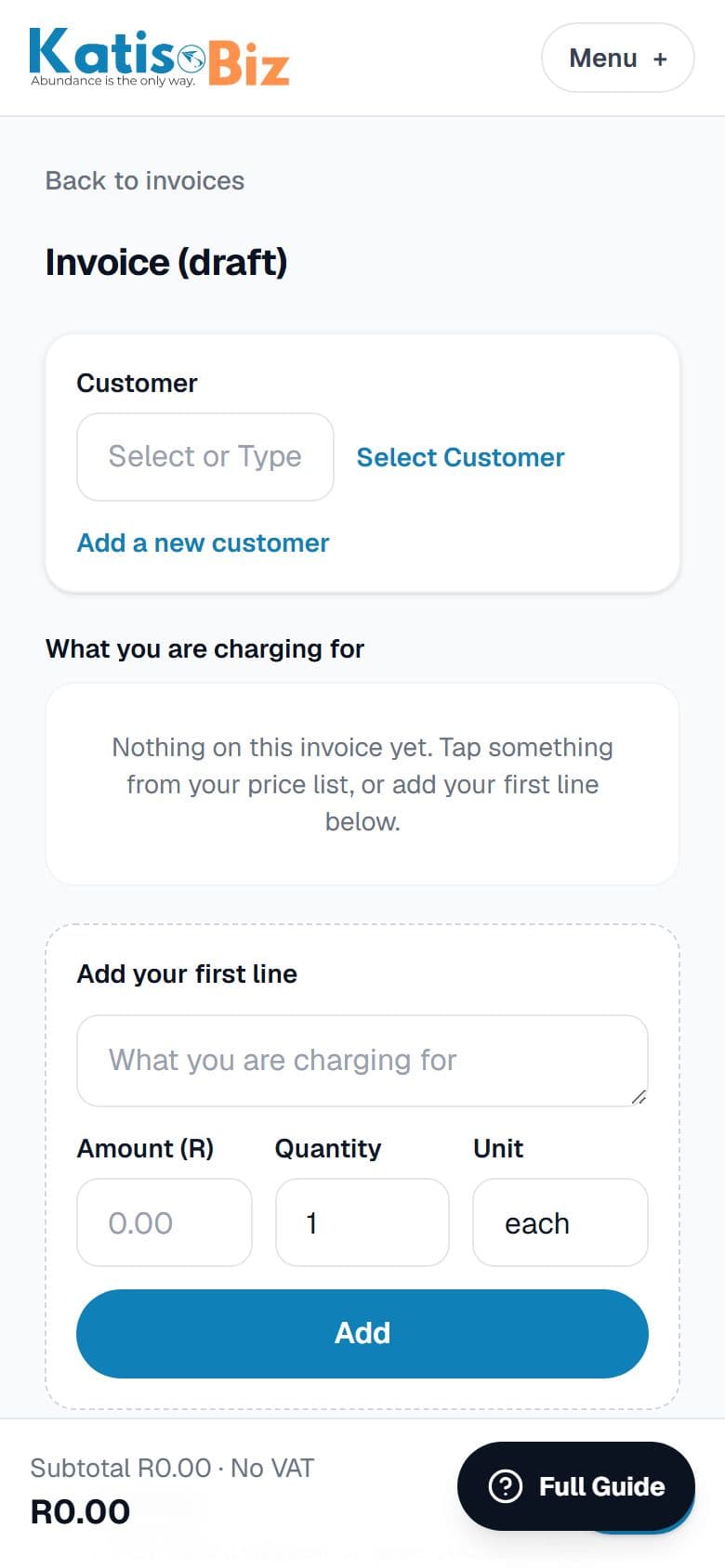
Create and send an invoice
3 steps · Under a minute
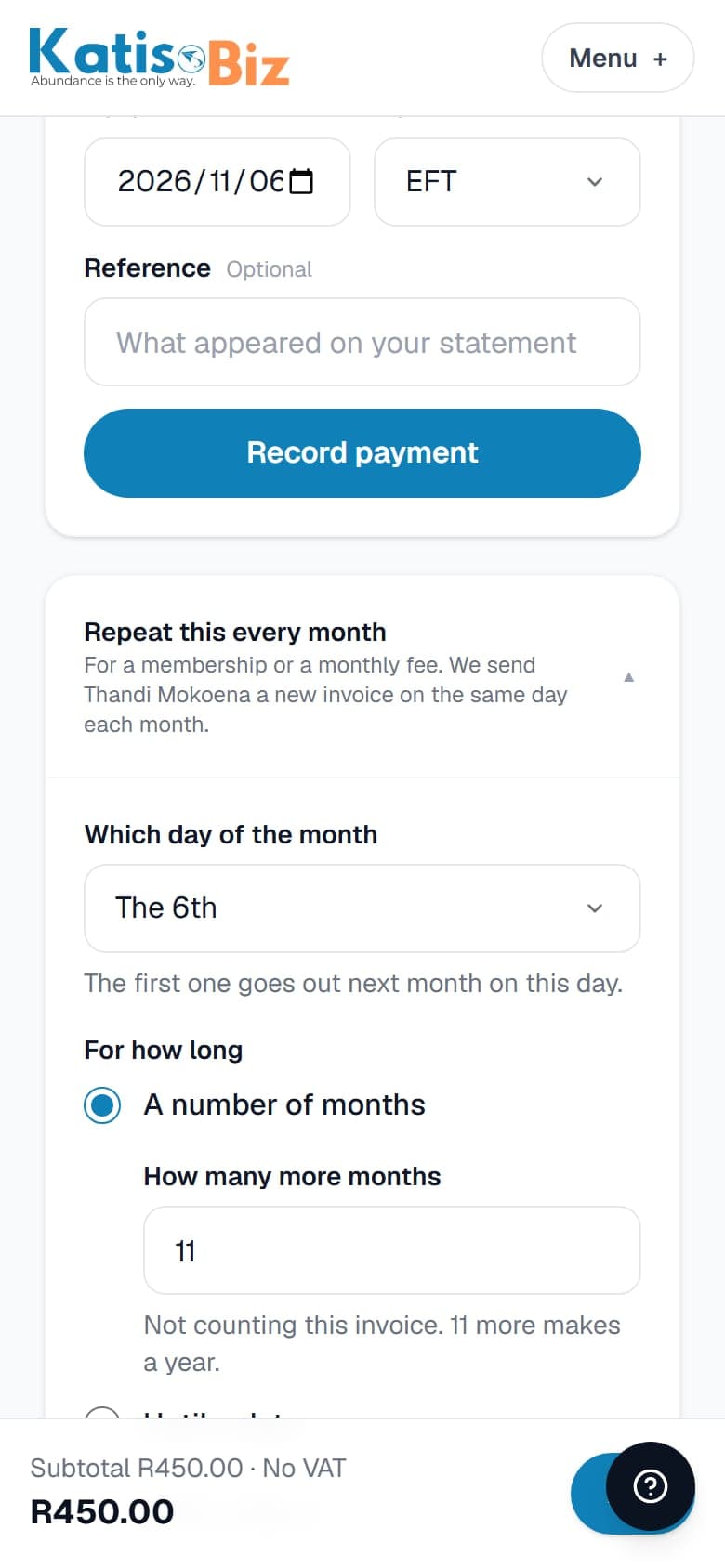
Send the same invoice every month
3 steps · About a minute
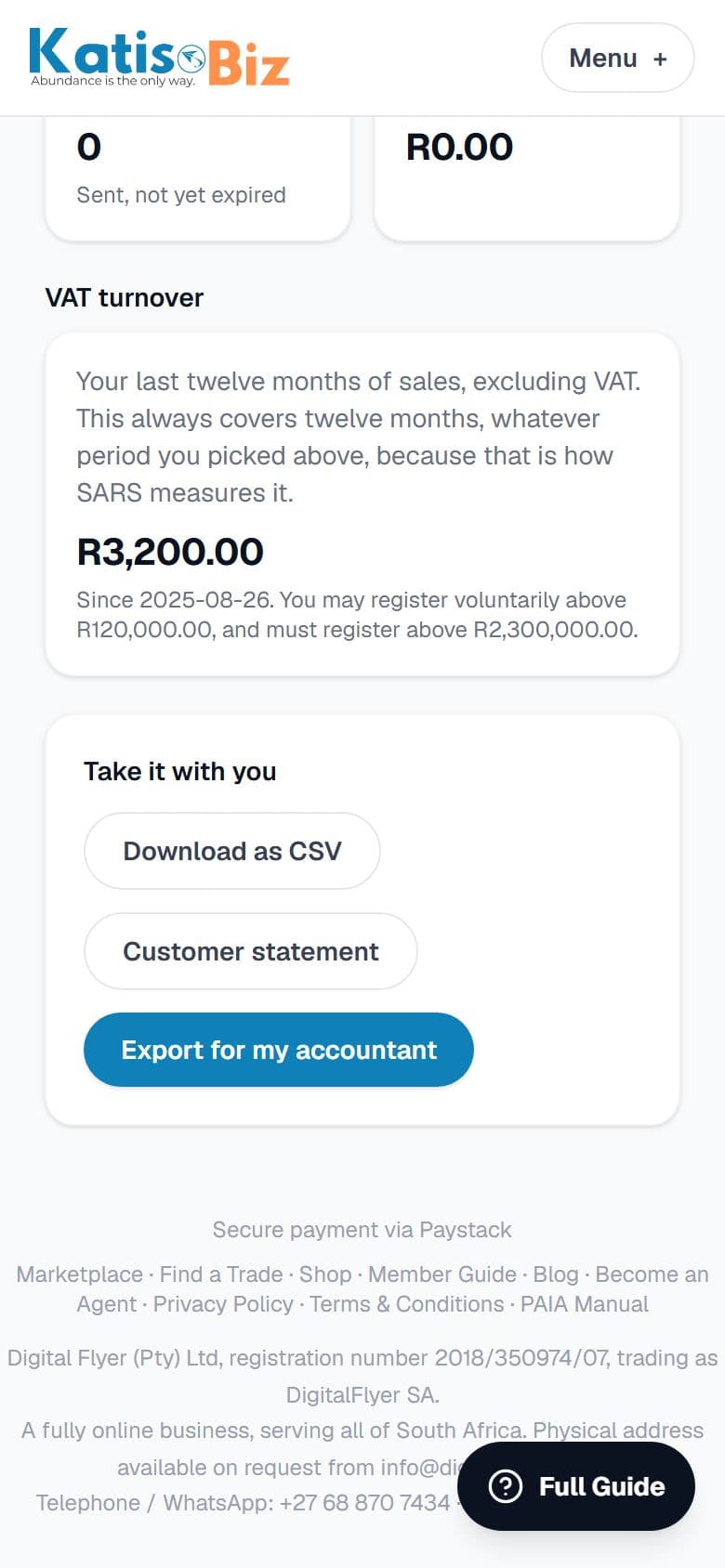
Send a customer statement
2 steps · About a minute
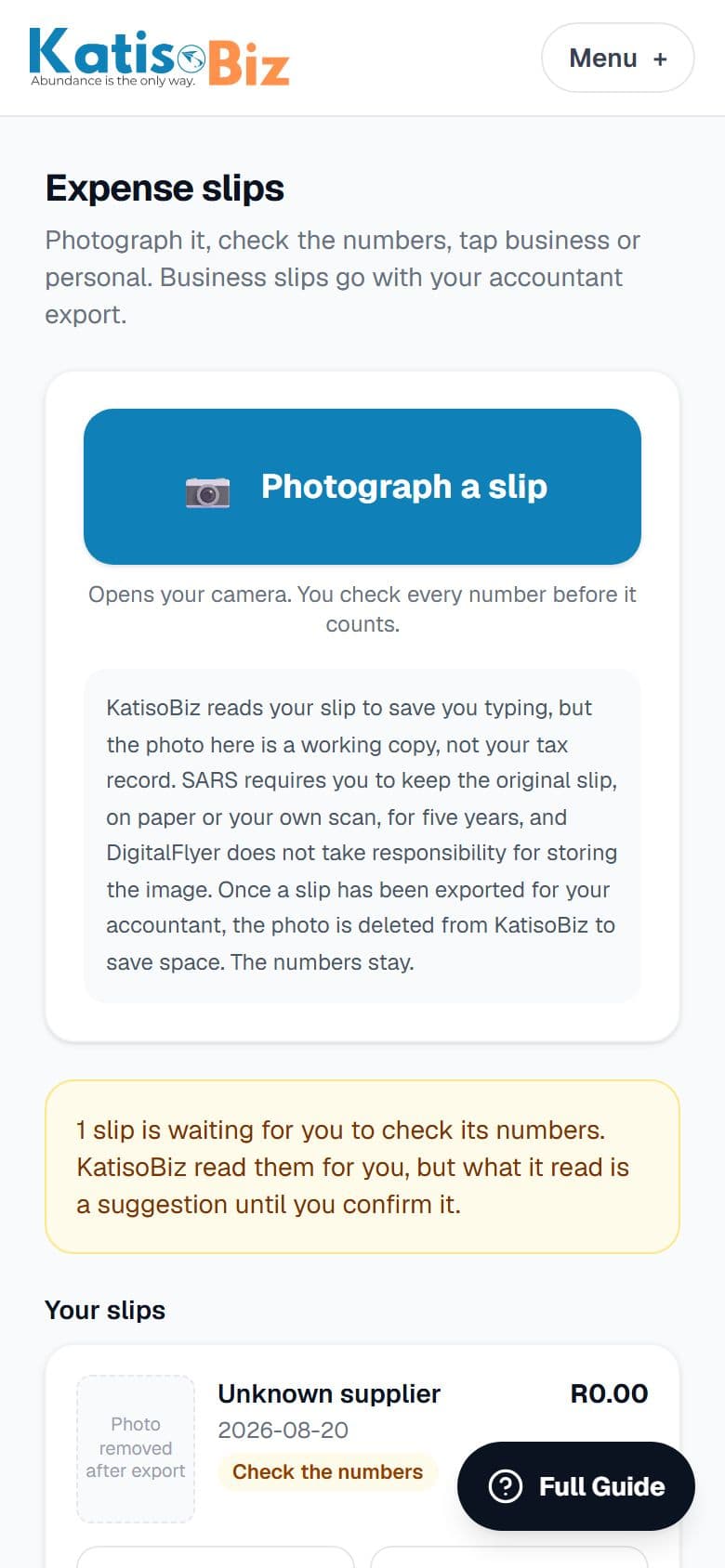
Keep your slips for tax
3 steps · A few seconds per slip
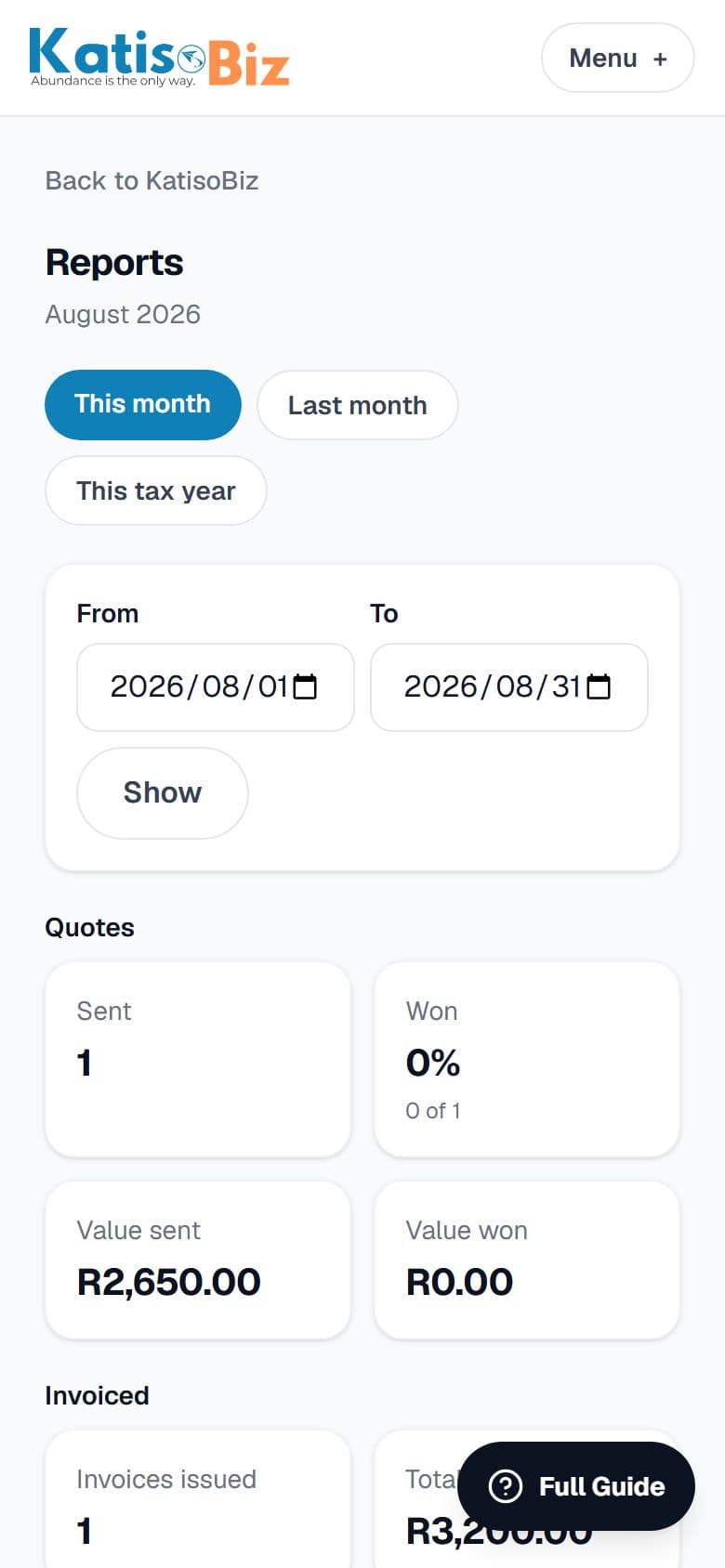
Read your reports
3 steps · A minute to read
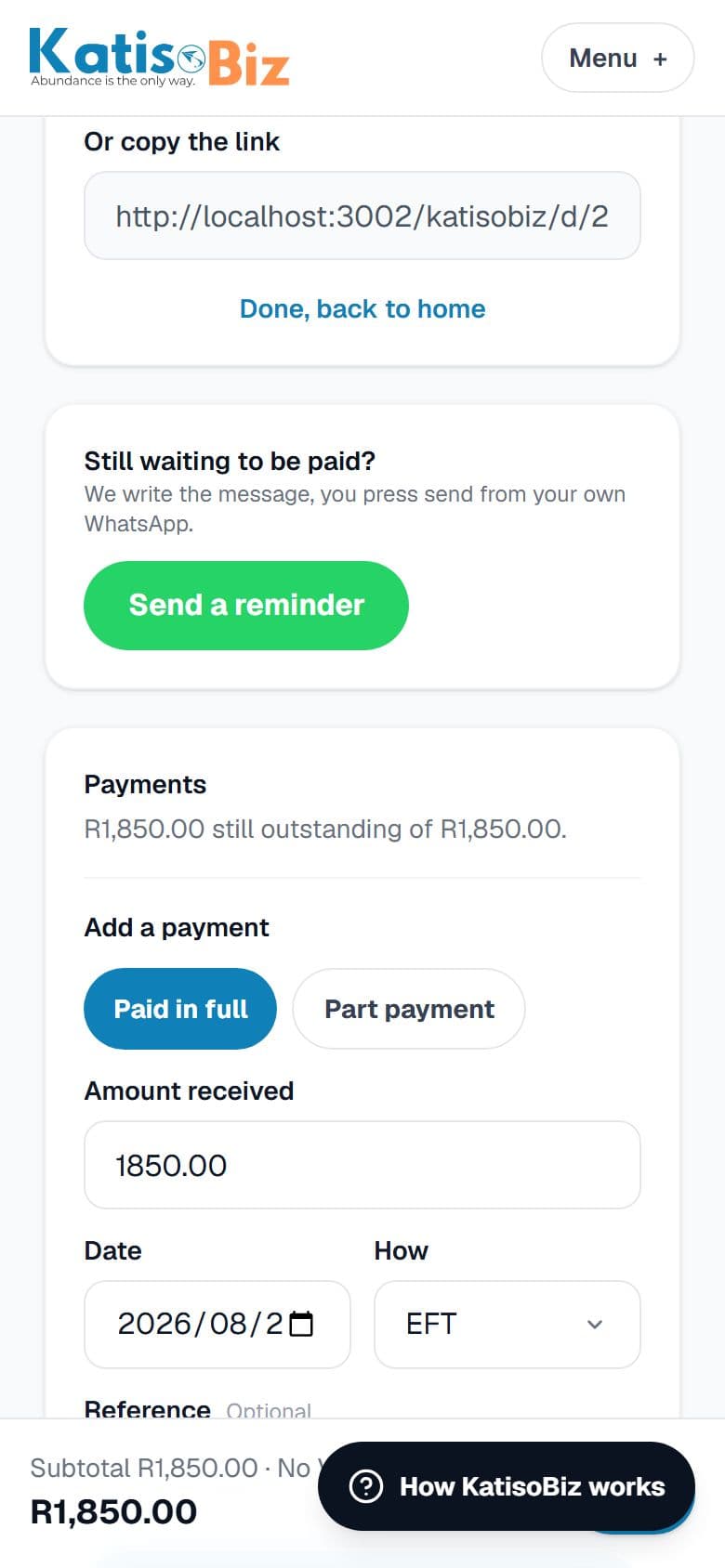
Record a payment
3 steps · About a minute
Getting the most out of it
Nine habits, from watching how members actually use it. None of them take longer than the thing they replace.
Quote while you are still standing there
The quote that wins is usually the first one to arrive. Build it on your phone before you leave, issue it, and send it on WhatsApp from the driveway. A quote sent that evening competes with two others. One sent three days later competes with a decision already made.
Save a price the first time you type it
Anything you type onto a quote can be saved to your price list with one tap. Do it as you go and within a month your list writes most quotes for you. Members who skip this are still typing their callout fee by hand in week six.
Issue it, do not leave it in drafts
A draft has no number and cannot be sent. It is the single most common thing we see: a finished quote sitting in drafts because the last step was missed. If it is ready, press Issue this quote, then send it.
Attach a customer, even for a quick one
A quote with no customer cannot be sent, and it also cannot be chased, counted or turned into a statement later. You can create a customer by typing a name straight into the quote, so it costs you nothing.
Put a valid until date on every quote
It protects your pricing when material costs move, and it gives you a natural reason to follow up. We email you before it runs out so you can call rather than wonder.
Record the money the day it lands
Payments recorded late make every number on your reports wrong, and the one you will care about is what you are owed. Two minutes on a Friday keeps the chasing list honest.
Chase with a statement, not a phone call
For a customer who owes you for several jobs, a statement lists all of it on one page and is far harder to argue with than a phone call. It is under Reports.
Check the customer's email before you send by email
One wrong character and the document goes nowhere with no bounce you will notice. If in doubt, send it on WhatsApp, where you can see it delivered.
Put it on your home screen
The whole point of quoting on site is that it happens while you are there, and that only works if KatisoBiz is one tap away rather than a browser, a bookmark and a login. It takes ten seconds to add and there is nothing to download.
Every screen, and what it is for
In the same order as the menu at the top of KatisoBiz.
Home
Where you stand today, and the four things you do most.
Three numbers across the top: what you have been paid this month, what you are owed, and what is sitting with a customer waiting for an answer. Below that, a counter showing how many documents you have used this month. Then buttons for a new quote, a new invoice, a new customer and your price list. When there is somebody to chase, Who to chase today appears: invoices past their due date with a Send a reminder button on each, quotes sent a week or more ago with no answer, and the next steps you set yourself that are due, each with a Done button. Anything still open shows in the list at the bottom, and drops off it once it is accepted, declined or paid.
Quotes
Everything you have quoted, and where you build a new one.
A quote is what you send before the job to win it. Building one takes three things: who it is for, what you are charging, and how long it stands. Add lines by searching your price list or typing them in. Press Issue to give it a number, which locks the amounts, then send it on WhatsApp or by email. Once the customer says yes, press They accepted, then Turn this into an invoice, and nothing is retyped.
Invoices
Everything you have invoiced, and what is still owed.
An invoice is what you send after the job to get paid. It can come from a quote or be raised on its own. Your banking details print on it automatically, with your invoice number as the payment reference so you can match the money when it arrives. Record payments as they come in, in full or in part. Once issued the amounts cannot be edited, which is what SARS expects, so corrections go through Fix this invoice instead. For a membership or a monthly fee, open Repeat this every month at the bottom of an issued invoice, and a new invoice goes to that customer on the same day every month. Repeating invoices, at the top of the Invoices screen, is where you see them all, and pause or stop one.
Customers
The people you invoice, and everything you have done with them.
Only a name is required. Add a phone number to send on WhatsApp, an email to send by email, and an address if you are VAT registered and the job is over R5,000, because SARS asks for it at that point. You can add a customer in the middle of building a quote without losing the quote. Open a customer to mark them Lead, Active or Past, set a next step with a date, write a dated note, and see What has happened: their quotes, invoices, payments, appointments, notes and next steps, newest first. Notes and next steps are private to you. Use the buttons above the list to show only leads, active or past customers, and Your next steps lists every next step you have set.
Diary
Your own appointment book.
Press Add an appointment to book a job in, then send it to your customer on WhatsApp in one tap. If the time changes, the same tap sends the new time. Appointments are grouped into today, this week, later, and the last two weeks. Once you mark a quote as accepted, Put the job in your diary on that quote starts the appointment with the customer already filled in. The diary itself is never on any public page.
Price list
The things you charge for often, so you never type them twice.
Save your callout fee, your hourly rate, the parts you fit most. Each one has a name, how it is charged (per hour, per job, each) and a price. You can add a markup as a percentage or a flat rand amount for things you buy in and sell on, and it shows you what it will actually bill at. Anything you type onto a quote can be saved here with one tap, so the list builds itself while you work.
Slips
Your expense slips, photographed and sorted.
Photograph an expense slip and KatisoBiz reads the date, supplier and amount for you. Check the numbers, then tap Business or Personal. Pick what kind of spend it was: your own kinds come first, and choosing Other asks what it was and adds it to your own (Settings, Your kinds of spend and income). If you are VAT registered, type the VAT the slip shows. Business slips go into your accountant export with the photos included. Keep the original slips as well, because SARS wants those kept for five years and the photo here is only a working copy. Slips comes with the paid plans.
Bank
Your bank statement, sorted for you.
Download your statement from your banking app as a PDF or a CSV file (OFX works too) and add it here. KatisoBiz adds each transaction once, matches money in to payments you already recorded and money out to slips you already photographed, and then asks you about the rest one at a time: for money in, which invoice it paid (it suggests the likeliest, and Yes, mark it paid records the payment on it), business money with no invoice and what kind of income it was, or your own money; for money out, the business (and what kind of spend) or you and your family. Moving money between your own accounts, SARS, loans and refunds are under Something else. Answer the same way twice for the same payee and it sorts the next one for you. Every answer can be changed with Change under What we sorted. It checks every line against the running balance on your statement and marks any that do not add up. Your accountant gets every line with your answer. Bank comes with the paid plans.
Who I owe
Bills you have not paid yet, and what SARS wants next.
On a bill you photographed under Slips, tap I have not paid this yet. For one with nothing to photograph, tap Add something you owe and say who, how much and by when. The ones to pay first are at the top, late ones in red, and your home screen shows them too. When you have paid one, tap I paid this today, or say another day. When your bank statement shows the exact amount and names the supplier, KatisoBiz ticks it off by itself; otherwise it asks you with one tap. A bill counts in Money in and out on the day you paid it, and your accountant sees what you still owe. If you are VAT registered, your VAT to pay is here too, and SARS payments coming up in the next two months show with their dates.
Reports
What the business is actually doing, for any period you choose.
Six reports on one screen: what you quoted and how much you won, what you invoiced, what has actually been paid, who is behind and by how long, what is still sitting out there unanswered, and how close you are to having to register for VAT. Every figure is clickable and opens the documents behind it. Your home screen answers Am I making money?, Where did my money go? and Who do I owe? for your latest months, and a tap opens the full month. The One-page report puts your money on one sheet to send to your bank or a funder, and says clearly that the figures are your own. At the top here, Know where your money is leads to Money in and out (what came in, what went out and what is left, and what else left your bank), the VAT working paper if you are VAT registered (your VAT for a VAT period, for your accountant to check, not a return), and Get a period checked (mark a period ready, your accountant checks it, a CA's sign-off is recorded, and the period locks). From here you also reach a customer statement and the export for your accountant.
SARS & CIPC
What SARS, CIPC and the Department of Labour expect from your business, and when.
Answer a few questions about your business once: how it is set up, when your year ends, whether you pay staff. KatisoBiz then lists only what applies to you, each with its date, what it is in one sentence, what you need to have ready, and what happens if it is missed. Things are marked Overdue, Due soon, Action required, Coming up or Completed, and the top of the screen tells you your next step. Tap I have done this once it is done, and Add the proof to keep the paper that shows it. Every date is checked by our accountant before you see it; anything still being checked is listed under Pending verification. When something changes lists the filings that have no date, such as a new director. At the bottom, Let our accountant check everything lets our own accountant see your dates, papers and figures, mark things done for you and close your books; you can stop sharing at any time. KatisoBiz never files anything for you.
Papers
Your important papers, safe in one place.
Registration papers, SARS letters, tax returns, bank statements, contracts and insurance. Take a photo or choose a PDF, say what kind of paper it is, and add a name, date or reference number if you like. Papers are grouped by kind, and the search finds them by name, reference or kind. A paper added from Add the proof on SARS & CIPC is kept as the proof for that date. Only you can see your papers. Reach them from SARS & CIPC.
History
Everything you have finished with.
Quotes and invoices that are done, split into two tabs and searchable by number or customer name. Anything still open stays on the Quotes and Invoices screens, so those stay about work in progress and this stays about looking something up.
Settings
Your business, your bank, your look, your numbering, and your plan.
Business details are what print at the top of every document, including your VAT number if you have one. Banking details are where your customers pay you, and changing them later needs a code from your email on purpose. Also under Business details: How your documents look is where you pick a template, Your logo is where you upload the logo printed at the top of every document, and Insurance work turns on a second price on every item. Under Banking details, Get paid online connects your own Paystack account so every invoice link gets a Pay now button and the invoice marks itself paid. Thank my customers when they pay, also under Business details, emails your customer a thank-you each time a payment is recorded; it is on until you switch it off. Invoice numbering lets you carry on from your last invoice number if you are coming from another system, and it locks once you send your first invoice. Your plan is where you upgrade or buy a topup.
Still stuck? Ask a person.
WhatsApp 068 870 7434 or email info@digitalflyer.co.za. If it is about a particular quote or invoice, send us the number on it and we will be much quicker.