
DigitalFlyer SA Agent Programme
Agent guide
The whole job, one step at a time, in the order it happens. Start with your practice page: it is the quickest way to learn every screen.
Getting started
Your login, your agent dashboard, and a practice page to try everything on first.
Sign in and find your agent dashboard
About 2 minutes
- Open the email we sent when you were approved, and press the link in it to set your password.
- Sign in with your email and that password. You land on your agent dashboard.
- If you also have a business page of your own, the switch at the top of the dashboard moves you between your business and your agent work.
Practise on your own practice page first
About 10 minutes
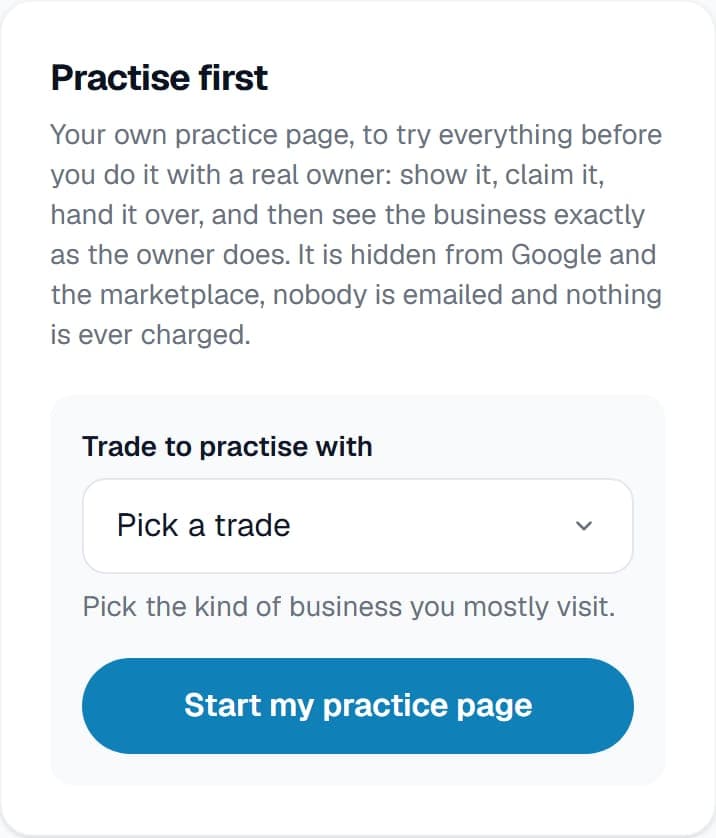
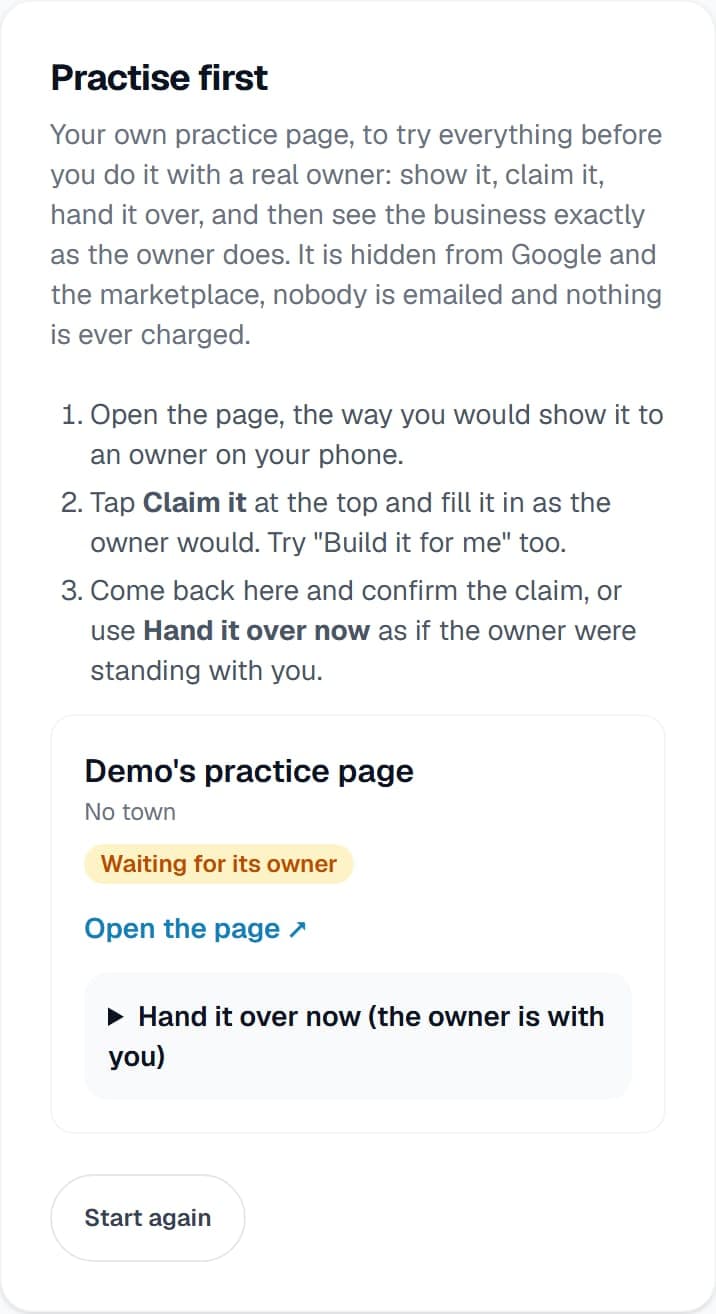
- On your agent dashboard, find Practise first. Pick a trade and press Start my practice page.
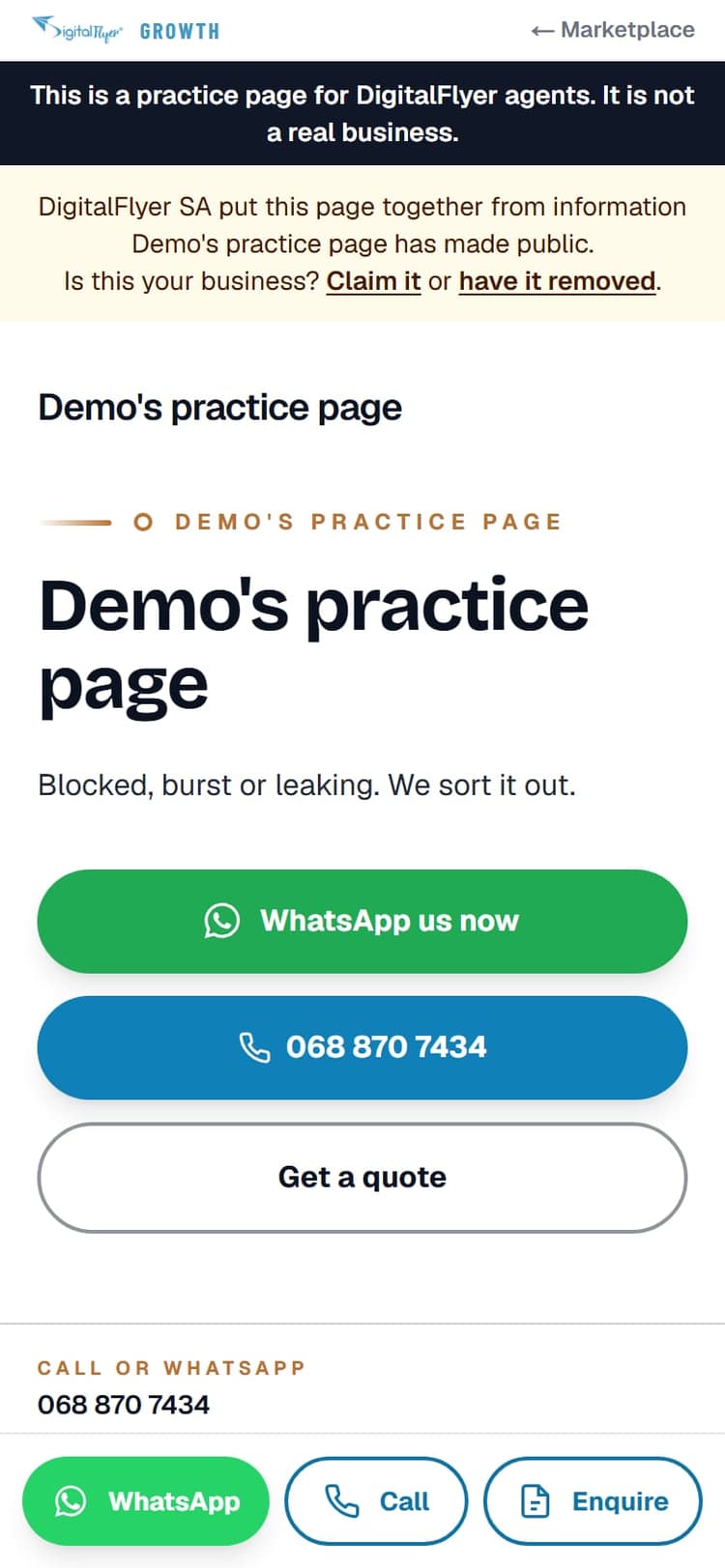
- Press Open the page, and look at it the way an owner would on your phone.
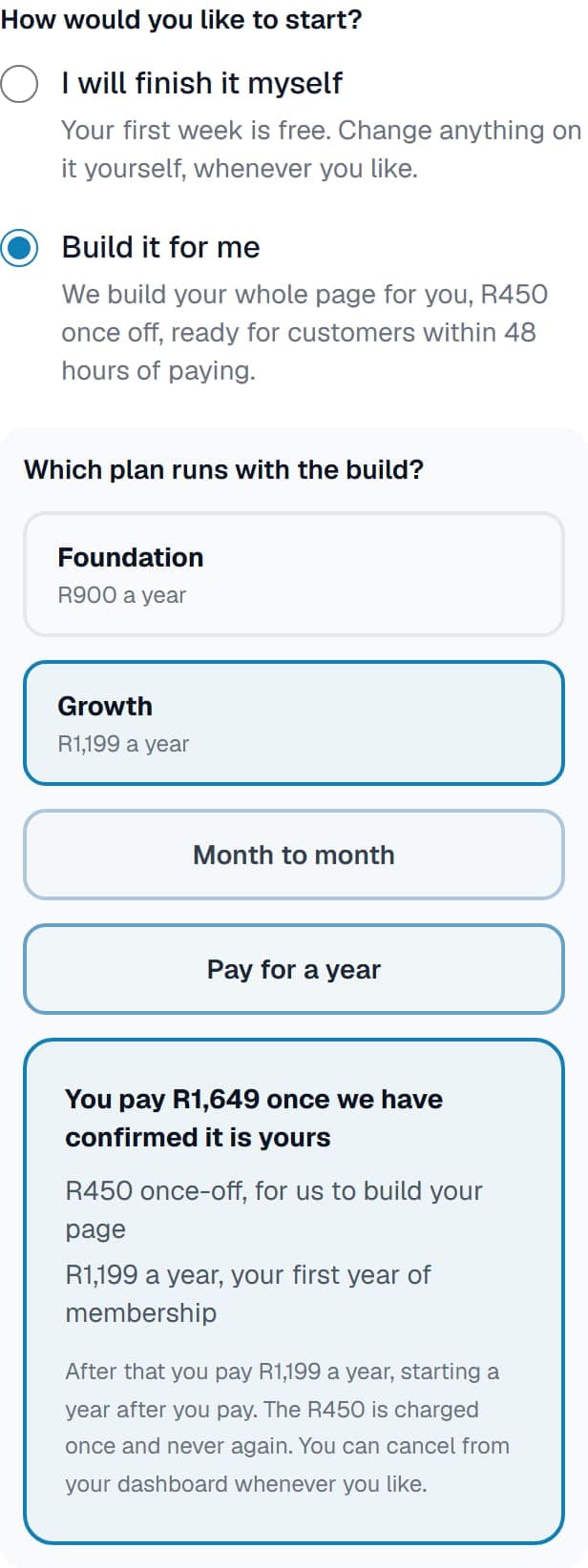
- Tap Claim it at the top of the page and fill it in as the owner would. Try Build it for me too, to see what an owner sees.
- Back on your agent dashboard, press Confirm, it is theirs. Nobody is emailed, because it is practice.
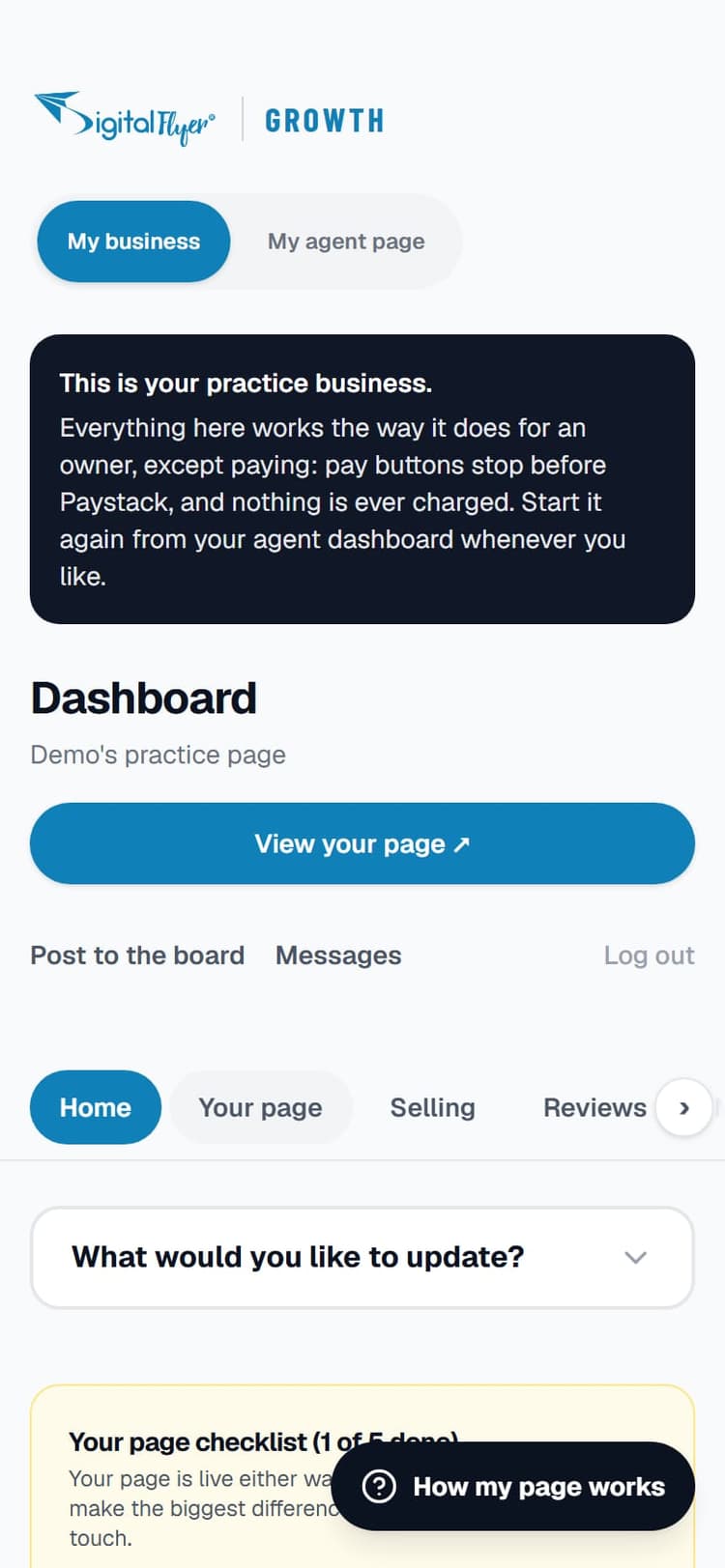
- Press Open my practice business to see exactly what an owner sees after claiming: the free week, the plan buttons and the offer to have us build it.
- Press Start again whenever you want a fresh one.
Your practice page is hidden from Google and the marketplace, and nothing on it can ever be charged.
A page before you visit
Walk in with the business's own page already on your phone.
Prepare a page for a business
About 2 minutes
- Under Prepare a page before you visit, type the business's name the way it is written on its sign or van.
- Pick its trade, province and town. Type the public phone number from its sign, its Google listing or its Facebook page.
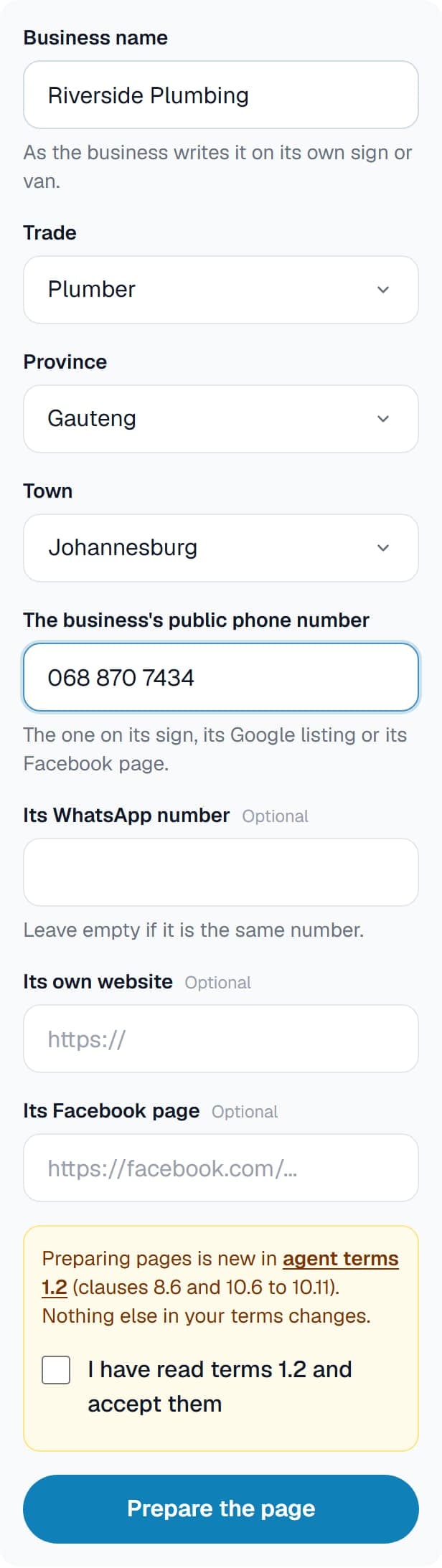
- Add its website or Facebook page if it has one. Use only what the business has made public itself.
- Press Prepare the page. It is ready straight away, at the top of your list.
The page says it was put together from public information, takes no enquiries until the owner claims it, and is credited to you for good.
Show the owner their page
- Press Open the page on its card, and show the owner their own page on your phone.
- Or press Send it to them on WhatsApp. Your own WhatsApp opens with the link already written.
- It is safe to tap Claim it while you show them, or while you film a screen video for them. Nothing is saved until somebody fills the form in and presses Claim this page. Back to the page takes you out again.
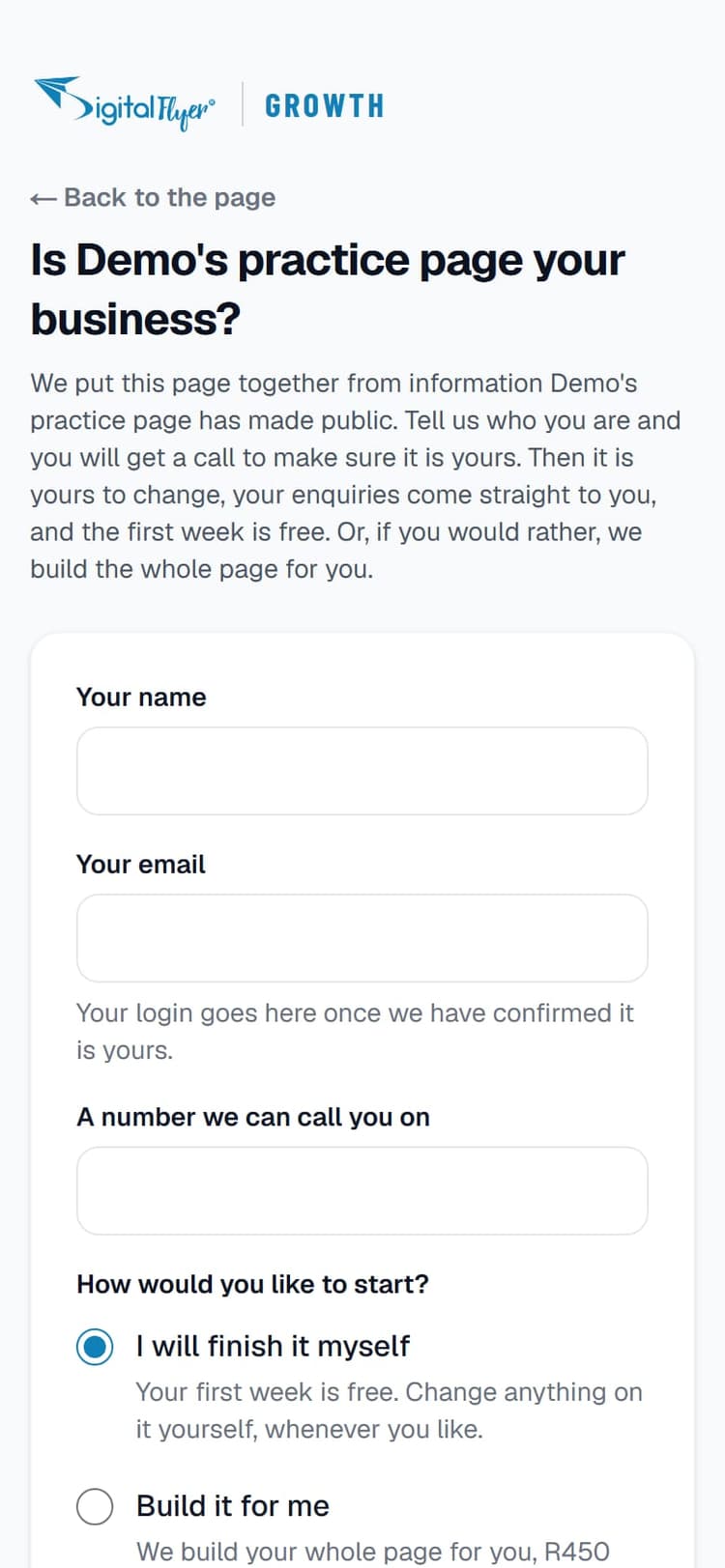
- Never send the claim form with your own details. The owner claims their own page.
When the owner says yes
They claim it themselves, or you hand it over on the spot. Either way they choose: do it themselves, or have us build it.
The owner claims it online
- The owner taps Claim it on their page and fills in their name, email and phone. They choose how to start: finish it themselves, or have us build it.
- You get an email, and the claim shows on that page's card on your agent dashboard.
- Phone the owner and make sure the business really is theirs.
- Press Confirm, it is theirs, only once you have spoken to them. If something is not right, press Decline.
- Their login goes to their email. If they chose the build, the payment link goes with it.
Hand it over when the owner is with you
About 2 minutes
- On the page's card, open Hand it over now (the owner is with you).
- Type the owner's name, email and phone. Their login goes to that email, so check it with them.
- Ask how they want to start. They will finish it themselves gives them a free week. They want us to build it shows the plans: pick the one they choose, monthly or yearly.

- Let them read the terms, tick the box, and press Hand it over.
- If they chose the build, the payment link is in their email. They pay on their own phone, never on yours.
How the owner pays
Always to us, through Paystack, on their own phone. Never to you.
How the owner pays
- On their free week, the owner opens Account in their dashboard and picks a plan. That opens a secure Paystack page.
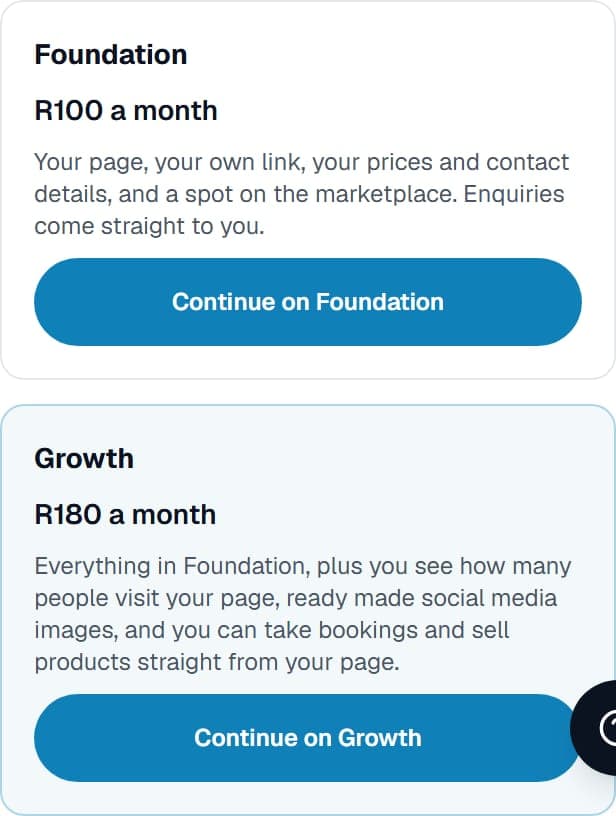
- Any card works on that page, so somebody else can pay for them: a partner, a family member, their bookkeeper.
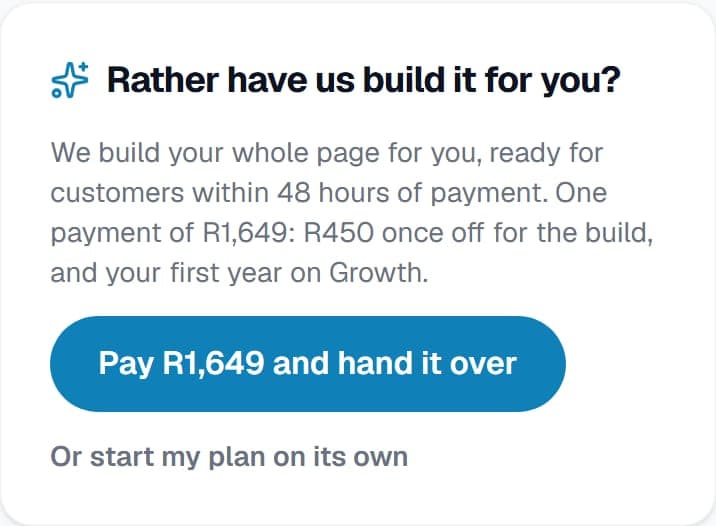
- If they asked us to build it, they pay once: the build and their first month or year together. The link is in their email, and the same payment waits on Home in their dashboard.
- If they lose the link, tell us and we send a fresh one.
You never take money, and you never quote a price that is not on our pricing page.
What you earn, and the rules
The short version of your agent terms. The full terms are linked at the end of this guide.
What you earn
- You earn on the plan a business pays for, monthly or yearly. Never on the build fee.
- Every business credited to you shows on your agent dashboard, with what it has earned you.
- A page you prepared stays credited to you for good, whoever confirms the claim.
What you may never do
- Never take money from a business, in cash or into your own account. They always pay us, through Paystack.
- Never charge a fee of your own, or quote a price that is not on our pricing page.
- Never ask for a business's password or sign in to their account. If they need help, we help them.
- If a business asks for its page to be removed, it is gone for good. Do not approach it about a page again.
The rules, in full
This guide is the short version. The agent terms are the ones that count.